
The Hidden Data Settings on Your Social Apps and Phone (and How to Turn Them Off)
By Ashley Gross
·
·
Gemini

You never said yes to most of this. You tapped "Allow" once, skipped a pop-up, or updated an app. That was enough.
Your social apps and your phone collect far more than the posts you share. Facebook can scan photos you never uploaded. TikTok follows you onto other websites. LinkedIn shares your activity with Microsoft for ads. Most of these settings start switched on, and most sit three or four menus deep.
This guide walks through the hidden settings brand by brand, with the exact path to each one and what it actually collects. We checked every path in October 2026. Apps rename menus often, so if a label looks different, search the app's settings for the setting name in quotes.
What You Need
Your phone, with Facebook, Instagram, WhatsApp, and TikTok installed. Several of these settings only exist in the mobile app.
A desktop browser for LinkedIn, Meta Accounts Center, and your Google Account. The screens are bigger and the menus are easier to find.
About 45 minutes for everything, or ten minutes per platform.
1. Facebook
The sneaky part: Facebook can upload photos from your camera roll to its cloud, including photos you never posted, and analyze the people, faces, places, and dates in them. Some users found it switched on without ever seeing a prompt.
Turn off camera roll cloud processing
Step 1. In the Facebook app, tap the menu, then Settings and privacy, then Settings.
Step 2. Under Preferences, tap Camera roll sharing suggestions.
Step 3. Switch off both toggles: Get camera roll suggestions when you're browsing Facebook and Get creative ideas made for you by allowing camera roll cloud processing.
Then close the door at the phone level. On iPhone, go to Settings, then Apps, then Facebook, then Photos, and choose Limited Access or None. On Android, go to Settings, then Apps, then Facebook, then Permissions, then Photos and videos, and choose Don't allow or Allow limited access.
Stop other businesses from feeding Meta your activity
Every website and app that uses Meta's tracking pixel reports what you browse and buy back to Meta. By default, Meta uses that to target you.
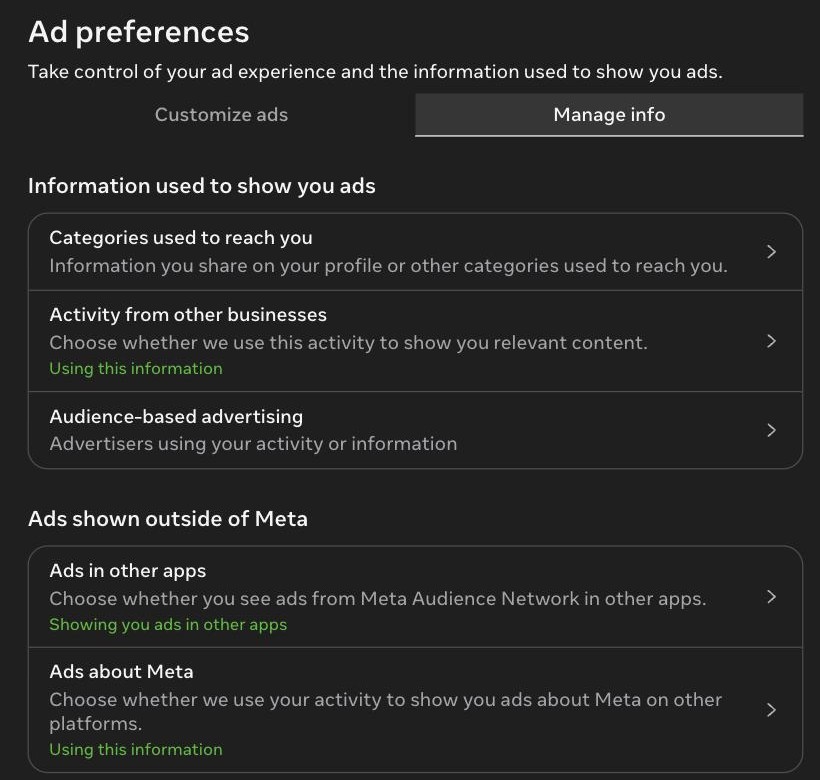
Step 1. Open Accounts Center (Facebook menu, Settings and privacy, Settings, Accounts Center), then Ad preferences, then the Manage info tab.
Step 2. Tap Activity from other businesses and choose not to use this activity. If it says "Using this information," it is on.
Step 3. On the same tab, open Ads in other apps and Ads about Meta and switch both off.
Delete the contacts you uploaded years ago
If you ever let Facebook or Messenger "find friends," it uploaded your entire phone contact list and keeps syncing it.
Step 1. In Accounts Center, open Your information and permissions, then Manage contacts.
Step 2. Delete the uploaded contacts and switch off continuous contact upload.
Step 3. While you are here, open Activity from other businesses and clear your history so Meta disconnects what it already collected.

Keep your posts out of Meta's AI training
In the US, Meta trains its AI on public posts, photos, and comments from adult accounts, and there is no opt-out switch. The only lever is making your posts non-public. Go to Settings, then Audience and visibility, then Posts, set future posts to Friends, and use Limit past posts. Since December 16, 2025, Meta also uses your Meta AI chats to personalize ads, with no opt-out outside the EU, the UK, and South Korea.
2. Instagram
The sneaky part: Instagram shares the same Accounts Center as Facebook. Fixing Facebook's ad settings above also fixes most of Instagram. The camera roll permission is separate, and so is your account visibility.
Step 1. Repeat the phone-level photo permission for Instagram: iPhone Settings, Apps, Instagram, Photos, then Limited Access.
Step 2. In Instagram, tap your profile, the menu, then Account privacy, and switch on Private account if you do not use Instagram for business. Public posts feed Meta's AI training. Private ones do not.
Step 3. Check the Instagram Map. It launched off by default, but confirm it: open your messages, tap the Map, tap the gear icon, and choose No one.
Step 4. If you use Instagram for business, keep the account public and skip Step 2. Steps 1 and 3 still apply.
3. WhatsApp
The sneaky part: Your messages are end-to-end encrypted, but WhatsApp still shares your phone number, device details, and usage data with Meta. Meta AI now sits inside your chats, and anyone in a group can mention it and share messages with it.
Step 1. Open a chat or group, tap its name, and switch on Advanced chat privacy. It stops people from exporting the chat, auto-saving its media, and using its messages with Meta AI. You set it chat by chat, so start with client and family groups.
Step 2. Go to Settings, then Privacy, then Advanced. Switch on Protect IP address in calls and Disable link previews. Your IP address can reveal your city.
Step 3. Under Settings, then Chats, switch off Save to Photos (iPhone) or Media visibility (Android). Otherwise every photo anyone sends you lands in your camera roll, where other apps can see it.
Step 4. Under Settings, then Privacy, set Last seen and online, Profile photo, and About to My contacts.
Ask Meta AI something sensitive? Use its incognito chat. Meta says those chats are not saved and disappear when you leave.
4. LinkedIn
The sneaky part: LinkedIn trains generative AI on your profile, posts, and activity unless you switch it off. Since November 3, 2025, it also shares data with Microsoft and its affiliates for advertising.
Step 1. Click your photo, then Settings and Privacy, then Data privacy.

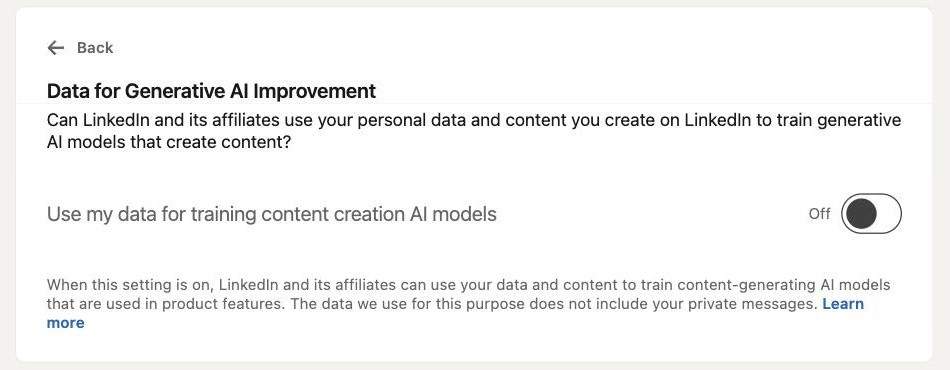
Step 2. Open Data for Generative AI Improvement and switch off Use my data for training content creation AI models. LinkedIn says private messages are excluded, but it does not remove data it already used.
Step 3. Open Policy and academic research and switch it off too.
Step 4. Select Advertising data in the left menu. Under Off LinkedIn data, switch off Ads off LinkedIn, Data from others for ads, Measure ad success, and Share data with affiliates and partners. That last one is the Microsoft data share.

Step 5. On the same page, the Profile data and Activity and inferred data sections let advertisers target you by employer, job title, connections, age range, and gender. Switch off each one you do not want used.
5. TikTok
The sneaky part: TikTok tracks what you do on other websites and apps through its advertising partners, then follows you off TikTok with ads. Both settings start on. TikTok also offers no AI training opt-out in the US.
Step 1. Tap Profile, the menu, then Settings and privacy, then Ads. On desktop, go to Settings and scroll to the Ads section.
Step 2. Under Manage your off-TikTok data, switch off Targeted ads outside of TikTok and Using off-TikTok activity for ad targeting.
Step 3. Tap Clear off-TikTok data to delete what advertisers already shared, and use Disconnect advertisers for any brand you do not want feeding TikTok.

Step 4. Under Settings and privacy, then Privacy, open Sync contacts and Facebook friends, switch both off, and remove synced contacts.
Step 5. On the same Privacy page, open Suggest your account to others and switch off every option. These use your contacts, mutual connections, and shared links to surface your account.
Step 6. Delete old drafts. TikTok's policy allows it to collect content you create but never post.
6. Google and Android Phones
The sneaky part: Web and App Activity quietly includes your Chrome browsing history, voice recordings, and visual searches. Google's ad profile is built from all of it. On Android, Gemini has replaced Google Assistant on many phones without a clear opt-in.
Turn off the activity Google saves to your account
Step 1. Go to myactivity.google.com/activitycontrols, signed in to your Google Account. On Android, you can also reach it from Settings, then Google, then Manage your Google Account, then Data and privacy.
Step 2. Under Web and App Activity, choose Turn off, or keep it on and untick all three subsettings: Include Chrome history, Include voice and audio activity, and Include Visual Search History.

Step 3. On the same page, turn off Timeline (location history) and YouTube History, or set each to auto-delete after three months.
Turn off personalized ads
Step 1. Go to myadcenter.google.com.
Step 2. Click Personalized ads in the top-right corner and switch it to Off. This also covers ads on Google's partner sites.

On the Android phone itself
Step 1. Go to Settings, then Security and privacy (or Privacy), then Ads, and tap Delete advertising ID. Apps lose the ID they use to track you across apps.
Step 2. Open the Gemini app, tap your profile picture, then Gemini Apps Activity, and turn it off. Our LLM Privacy Guide covers Gemini in full.
Step 3. Go to Settings, then Location, then Location services, and switch off Wi-Fi scanning and Bluetooth scanning. They keep locating you even when Wi-Fi and Bluetooth are off.
7. Apple iPhone
The sneaky part: Apple collects less than most, but several settings still ship switched on. Your Photos app checks your pictures against Apple's servers, Siri learns from the apps you use, and Apple Intelligence can hand requests to ChatGPT.
Step 1. Enhanced Visual Search. Go to Settings, then Apps, then Photos, scroll to the bottom, and switch off Enhanced Visual Search. It is on by default and matches landmarks in your photos against an Apple server index.
Step 2. ChatGPT inside Apple Intelligence. Go to Settings, then Apple Intelligence and Siri, then ChatGPT, and switch off Use ChatGPT. If you keep it, stay signed out so requests are not tied to your OpenAI account.
Step 3. Siri learning from your apps. In Apple Intelligence and Siri, tap Apps, choose an app, and switch off Learn from this App for anything sensitive, like banking, health, and messaging.
Step 4. Analytics and Siri recordings. Go to Settings, then Privacy and Security, then Analytics and Improvements. Switch off Share iPhone Analytics and Improve Siri and Dictation.
Step 5. Apple's own ads. In Privacy and Security, tap Apple Advertising and switch off Personalized Ads.
Step 6. Cross-app tracking. In Privacy and Security, tap Tracking and switch off Allow Apps to Request to Track. Every app is then denied automatically.
Step 7. Your location history. In Privacy and Security, tap Location Services, then System Services, then Significant Locations and Routes. Switch it off and tap Clear History. While you are in Location Services, set social apps to Never or While Using, and switch off Precise Location for them.
Quick Reference
Facebook: Camera roll sharing suggestions off. Activity from other businesses off. Uploaded contacts deleted. Posts set to Friends.
Instagram: Photo access limited. Private account if personal. Map set to No one.
WhatsApp: Advanced chat privacy on for key chats. Protect IP address in calls on. Save to Photos off.
LinkedIn: Data for Generative AI Improvement off. Share data with affiliates and partners off. Off LinkedIn data off.
TikTok: Targeted ads outside of TikTok off. Off-TikTok activity off and cleared. Contact sync off.
Google and Android: Web and App Activity subsettings off. Personalized ads off. Advertising ID deleted.
iPhone: Enhanced Visual Search off. ChatGPT extension off. Analytics, Personalized Ads, and tracking requests off.
Common Mistakes
Fixing the app and forgetting the phone. Facebook's camera roll toggle only works while Facebook still has access to your photos. Limit the permission at the phone level too.
Assuming "off" deletes the past. Most of these switches stop future collection. Use the clear, delete, and disconnect options to remove what each platform already has.
Doing it once. App updates add new features and new defaults. Instagram Map, Facebook camera roll processing, and LinkedIn's Microsoft data share all arrived through updates.
Keep Your Data Yours
You just closed the doors most people never knew were open. Keep them closed. Set a 15-minute privacy reset on your calendar every quarter and run back through this list on every social app and every phone in your house. New features ship switched on, and the next one will too.
Then finish the job with your AI tools. ChatGPT, Claude, Gemini, Perplexity, Copilot, and Meta AI each have their own training switch, and most start on. Read the LLM Privacy Guide and turn those off next.
Running a team? A personal checklist is not a policy. The Alliance helps companies set AI and data defaults once, at the admin level, so every employee is covered without having to remember.