
The LLM Privacy Guide: How to Stop AI Tools From Training on Your Chats
By Ashley Gross
·
·
ChatGPT

Your AI assistant is learning from you. The question is whether you said yes.
Most consumer AI plans use your chats to train future models unless you switch it off. That includes the client notes you pasted, the draft contract you asked it to tighten, and the salary numbers you ran through a spreadsheet prompt. The fix takes about two minutes per tool. This guide walks through each one with screenshots, flags what the toggle does not cover, and tells you which plans never train on your data at all.
We tested every path below in October 2026. Menus move often, so if a label looks different on your screen, search the app's settings for the setting name in quotes.
What You Need
The account you use each AI tool with, signed in on desktop. The same setting covers your phone app because it lives on your account, not your device.
Five minutes per tool.
Your plan name for each tool (Free, Plus, Pro, Business, Enterprise). It decides whether training is on in the first place.
Step-by-Step Walkthrough
1. ChatGPT (OpenAI)
On by default: Free, Plus, and Pro. Off by default: ChatGPT Business (formerly Team), Enterprise, Edu, and the API.
Step 1. Click your name in the bottom-left corner, then select Settings.

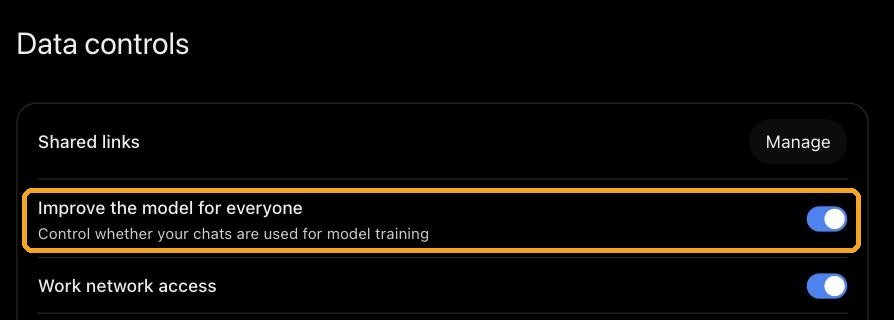
Step 2. Select Data controls in the left menu.

Step 3. Switch off Improve the model for everyone. When the toggle turns gray, your new chats stop going into training.
Use Temporary Chat for one-off sensitive prompts. Click the chat bubble icon in the top-right corner. Temporary chats stay out of your history and out of training. OpenAI still keeps a copy for up to 30 days for safety review, so it is private, not invisible.

Read the policy: OpenAI Data Controls FAQ and How OpenAI uses your data to improve its models.
2. Claude (Anthropic)
On unless you turned it off: Free, Pro, and Max. Anthropic asked every consumer user to choose in 2025, and the toggle came pre-set to on.
Never used for training: Team, Enterprise, Education, Claude Gov, and the API.
Step 1. Click your name in the bottom-left corner, then select Settings.

Step 2. Select Privacy.

Step 3. Switch off Help improve our AI models.

Why it matters: With the toggle on, Anthropic can keep de-identified chats for up to five years. With it off, standard retention drops to 30 days. For a quick private question, click the ghost icon in the top-right corner to start an incognito chat. Hover over it and you will see "Use incognito." Incognito chats are never used for training, even with the toggle on.

Read the policy: Anthropic Privacy Center: Is my data used for model training?
3. Google Gemini
On by default: personal Google accounts. Not used for training: Google Workspace accounts with Gemini, where your admin controls the setting.
Google renamed this setting from Gemini Apps Activity to Keep Activity. You will still see both names on the same page.
Step 1. On gemini.google.com, click the gear icon in the bottom-left corner, then select Activity at the top of the menu.

Step 2. Under Keep activity, click On, then choose Turn off or Turn off and delete activity to wipe past chats too.

On the same page, untick Improve Google services with your audio and Gemini Live videos and screenshares if it is checked.
If you see "Only an admin can change this activity setting," you are on a work account. Your company's Workspace terms already keep those chats out of training. Ask your admin if you want history off as well.

Step 3. From the same gear menu, open Personal Intelligence. Switch off Memory if you do not want Gemini learning from your past chats, then open Connected Apps. On a work account, Connected Apps sits directly in the gear menu.

Step 4. In Connected Apps, switch off Google Workspace (Gmail, Calendar, Docs, Drive, Keep, and Tasks) and any other app you do not want Gemini reading. Google used to call these Extensions.

Why it matters: Even with Keep Activity off, Google holds chats for up to 72 hours to run the service. Human reviewers also read a sample of chats. Google disconnects those from your account but keeps them for up to three years, and deleting your activity does not remove them. Keep anything confidential out of personal Gemini entirely.
Read the policy: Gemini Apps Privacy Hub
4. Perplexity
On by default: Free, Pro, and Max. Never used for training: Enterprise Pro and Enterprise Max.
Step 1. Click your name in the bottom-left corner and select All settings. The same menu has an Incognito switch for one-off private searches.
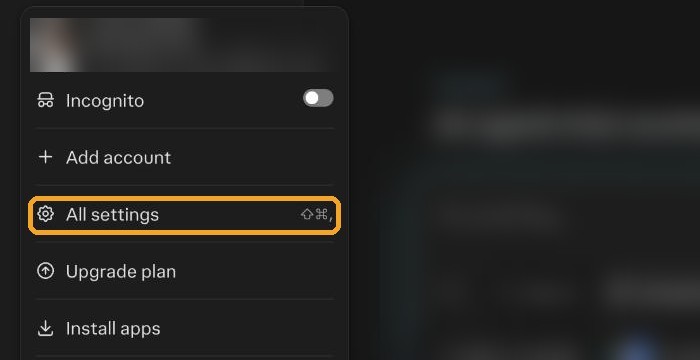
Step 2. Select Preferences in the left menu and scroll to the Artificial Intelligence section.

Step 3. Switch off AI data retention. Perplexity then excludes your future searches from model training.

Read the policy: Data collection at Perplexity and the Perplexity Privacy Notice.
5. Microsoft Copilot
On by default: personal Microsoft accounts on copilot.com and the Copilot apps.
Not used for training: Microsoft 365 Copilot with a work or school account, which runs under Enterprise Data Protection.
Step 1. Click the gear icon next to your name in the bottom-left corner, then select Settings.

Step 2. Select Personalization. Switch off Saved memories and Chat history if you do not want Copilot remembering facts you share or using past chats.

Step 3. Select Data controls. Under Diagnostic data for Microsoft 365, click Manage and keep only the required data.

Step 4. Look for the model training switches. Microsoft's help page says to open your profile, then Privacy, and switch off Model training on text and Model training on voice. On the updated Copilot we tested in October 2026, those switches did not appear in settings. If your app still shows a Privacy section, switch both off. If it does not, keep sensitive work out of personal Copilot until Microsoft restores the control.
Step 5. Stop Microsoft sharing your data with advertisers. Go to account.microsoft.com/privacy/third-party-ads and switch off Share my data with third parties for personalized ads. It is on by default.

Read the policy: Microsoft Copilot privacy controls
6. Meta AI
No training switch in the US. Meta AI on Facebook, Instagram, WhatsApp, and meta.ai has no settings toggle that stops your chats from training its models. Since December 16, 2025, Meta also uses your Meta AI conversations to personalize the ads and posts you see, with no opt-out outside the EU, the UK, and South Korea.
What you can do:
In regions with stronger privacy laws, submit an objection through the Meta Privacy Center under AI at Meta.
Delete your Meta AI chat history from the Meta AI app or meta.ai settings.
Treat every Meta AI chat as public. Keep client, financial, and health details out of it.
Read the policy: How Meta uses information for generative AI models
What "Off" Does Not Cover
Switching training off is the floor, not the ceiling. Three things still happen on consumer plans:
Short-term retention. Every tool keeps chats for a window, usually 30 days or 72 hours, for abuse and safety review.
Feedback overrides your setting. A thumbs up or thumbs down can send that conversation for review and training, even with the toggle off.
Past chats stay put. Turning training off covers future chats. Delete old ones if they matter.
Quick Reference
ChatGPT: Settings, Data controls, "Improve the model for everyone". Never trains on: Business, Enterprise, Edu, and the API.
Claude: Settings, Privacy, "Help improve our AI models". Never trains on: Team, Enterprise, Education, Gov, and the API.
Gemini: Settings and help, Activity, Keep activity, Turn off. Never trains on: Google Workspace accounts.
Perplexity: Settings, Preferences, "AI data retention". Never trains on: Enterprise Pro and Enterprise Max.
Copilot: Settings, Personalization, Saved memories and Chat history off. Microsoft account third-party ads sharing off. Model training switches off where shown. Never trains on: Microsoft 365 Copilot work and school accounts.
Meta AI: No toggle in the US. Use the objection form where available. No Meta AI plan is confirmed as training-free.
Common Mistakes
Assuming a paid plan means private. ChatGPT Plus and Pro, Claude Pro and Max, and Perplexity Pro all train by default. Price does not decide it. Business and enterprise terms do.
Changing it on one device and stopping there. The setting follows your account, so one change covers your phone. A second account, like a personal Gmail and a work login, needs its own change.
Using a personal account for client work. If your team pastes client data into personal AI accounts, no toggle fixes the governance gap. Move that work to a business plan with a signed data agreement.
Get this guide in your inbox
Keep a copy for later, then forward it to the colleagues, friends, and family who use AI every day. Most of them have training switched on and do not know it.