
How to Build a Complete Web App With Claude Artifacts (No Developer Required)
By Ashley Gross
·
·
Claude
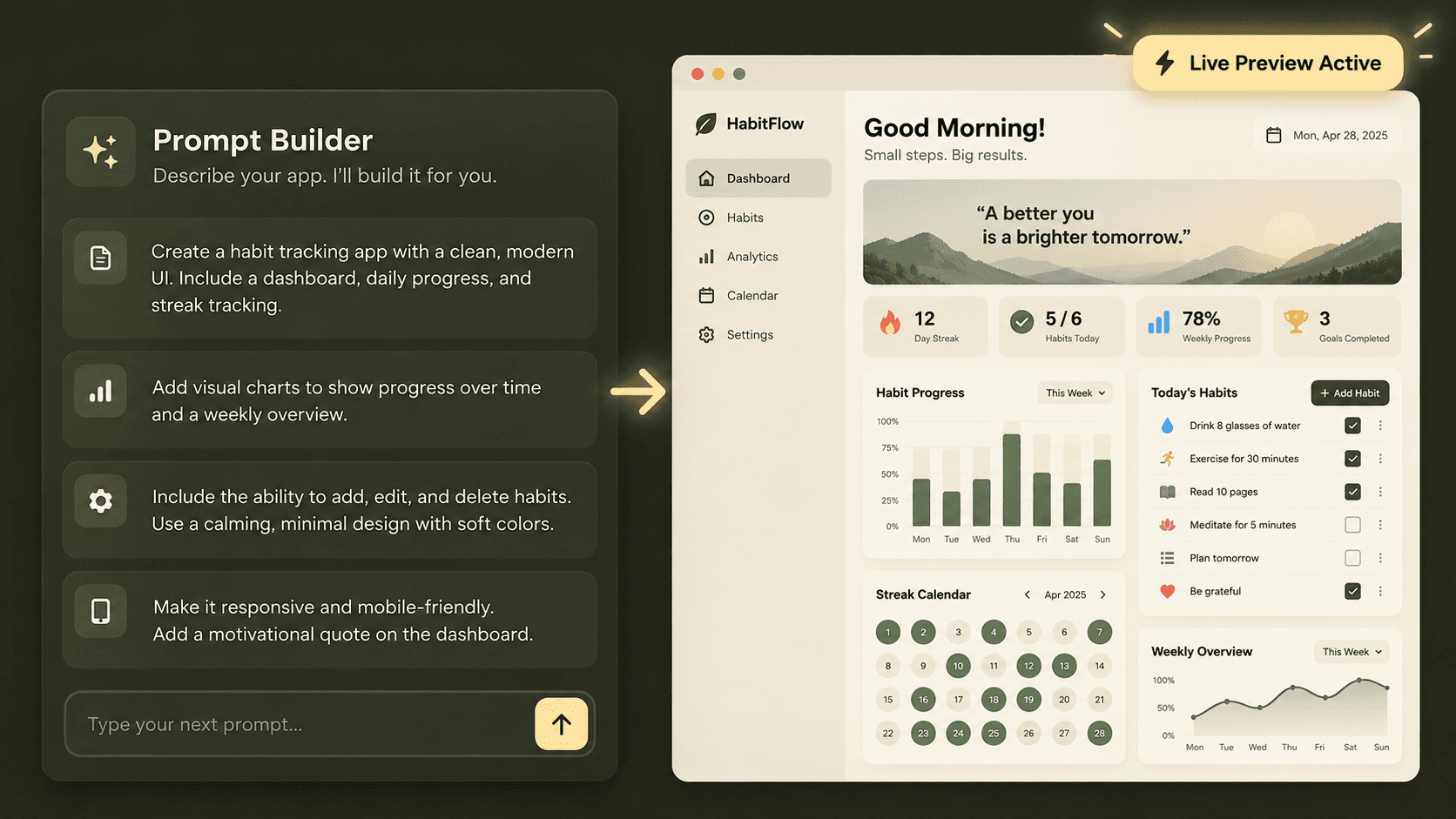
You asked Claude for a web app, and the first demo worked like magic. Then you asked for two more features, the layout exploded, and half your buttons stopped responding. This breakdown happens to almost everyone who moves past basic single-file prototypes. You do not need a developer or a computer science degree to fix it, just a clean system for scoping, versioning, and managing context.
What You Need
Plan level: Pro, Team, or Enterprise account (Free plans hit daily message and context limits quickly during iterative builds).
Scope: A written app spec (defined in Step 1).
Time: 60 to 90 minutes.
Step-by-Step Walkthrough
1. Write an App Spec Before You Build
Most non-developers open Claude and type, "Build me a CRM." That gives the model full freedom to guess your architecture, data structures, and layout, which leads to bloated code that breaks when edited. Draft a short, clear text specification first. Define your user, core components, data model, and visual layout.
Why it matters: Setting strict boundaries prevents Claude from adding unrequested features that consume your context window and introduce hidden bugs.

2. Set Up a Dedicated Project Workspace
Navigate to the Projects tab in Claude and create a workspace named after your application. Paste your written app spec into the Project Instructions panel. If you have brand guidelines, CSS themes, or sample CSV datasets, add them under Project Knowledge.
Why it matters: Project instructions persist across every chat tab in that workspace, keeping Claude aligned with your core rules even when you start a fresh session.

3. Build Version 1.0 as a Rendered Artifact
Open a fresh chat inside your Project and request the initial build. Specify that you want the application rendered as an interactive React or HTML Artifact.
When Claude outputs the code, the Artifact side panel opens automatically on the right. Test the form submissions, click the approval buttons, and confirm state updates cleanly.
Why it matters: Limiting Version 1.0 to two core features ensures you get a stable foundation before adding visual complexity.

4. Iterate One Feature at a Time and Roll Back When It Breaks
When adding features, prompt for a single improvement per message. If a new prompt breaks existing styling or functionality, do not try to fix it with five follow-up prompts. Look at the bottom of the Artifact window, open the version selector menu, and select your last working version.
Why it matters: One-prompt iterations keep code changes small, and rolling back bad builds prevents prompt-chasing through broken code versions.

5. Manage Growth Across Chats and Tools
When your chat history grows long, responses slow down and context drift increases. Once your app reaches 300+ lines of React code, stop adding features in that thread. Copy the latest working Artifact code, start a fresh chat inside the same Project, and paste the code with your next request.
If your tool outgrows a single React file (requiring backend databases, API calls, or multi-file directory structures), move the codebase to Claude Code via the Claude Desktop app or CLI. Claude Code runs directly on your local project directory, manages file structures, and handles terminal commands safely.
Why it matters: Resetting your chat context keeps Claude fast and accurate, while Claude Code gives you full multi-file engineering power when single Artifacts hit their limit.

6. Share or Publish Your Finished Web Application
Once your app works as expected, click the Share button at the top right of the Artifact window.
Team or Enterprise Plans: Share the link directly with specific colleagues or your entire organization.
Pro or Max Plans: Publish the link publicly so anyone with the URL can view and run the interactive app.
Why it matters: Instant sharing gives your business immediate access to functional internal tools without waiting on hosting deployments or server setups.

Real Example: HR PTO Request Tracker
An HR manager at a 40-person firm needed a lightweight tool to eliminate conflicting time-off requests. Here is the exact build sequence they used:
Initial Build Prompt
"Using the PTO tracker spec in our Project Instructions, build Version 1.0. Create the employee submission form and the manager approval table with 5 sample requests. Output as a React Artifact."
Iteration Prompt 1 (Adding the Calendar)
"The form and approval table work. Add a third tab called 'Team Calendar'. Display all approved requests on a visual monthly calendar grid using color coding per employee."
The Rollback Moment
The manager tried to add a PDF export feature alongside complex filters in a single prompt. The app screen went blank with a React syntax error. Instead of prompting Claude to fix the code, the manager opened the Artifact header, clicked Version 2, and restored the working calendar view in two clicks.
Iteration Prompt 2 (Controlled Feature Addition)
"Restored to Version 2. Let us add ONLY the status filter dropdown to the Manager Approval table (Filter by: All, Pending, Approved, Rejected). Do not add PDF exporting."
Final Delivery
The manager clicked Share, set permissions to "Anyone at [Company Name]", and posted the Artifact URL in their team Slack channel. The entire build took 45 minutes.
Common Mistakes
Asking for the whole app in a single prompt: Requesting a full app with authentication, databases, charts, and export tools in one turn forces Claude to write compressed, incomplete code that breaks immediately.
Layering multiple edits in one message: Combining design tweaks with new business logic makes troubleshooting impossible when something fails.
Running an endless chat thread: Letting a chat run past 20 messages causes context degradation. Claude forgets earlier design rules or starts replacing working code blocks with placeholder comments.
Take It Further
Keep a file named CHANGELOG.md in your Project Knowledge. Every time you finish a working version, paste a two-line summary into that file (for example: v1.2: Added status filter dropdown to approval view). When you start a fresh chat tab to keep performance fast, Claude reads the changelog automatically and picks up exactly where you left off.